Guide
Shopify robots.txt for AI Agents: What to Allow and Block
Last updated 1 November 2026
Short answer: Shopify's default robots.txt already lets AI agents read your products, so most stores should leave it alone. If you change it, keep search agents (such as OAI-SearchBot and PerplexityBot) and agents acting for a shopper (such as ChatGPT-User) allowed. Blocking model-training crawlers such as GPTBot is a separate choice: it doesn't stop agents from finding or recommending your products.
What robots.txt does for AI agents
robots.txt, at yourstore.com/robots.txt, tells crawlers which paths they may read. Most AI agents and search crawlers obey it, so a rule that blocks them keeps your products out of their answers. It isn't a security tool: it asks, and well-behaved bots follow it.
Shopify's default robots.txt
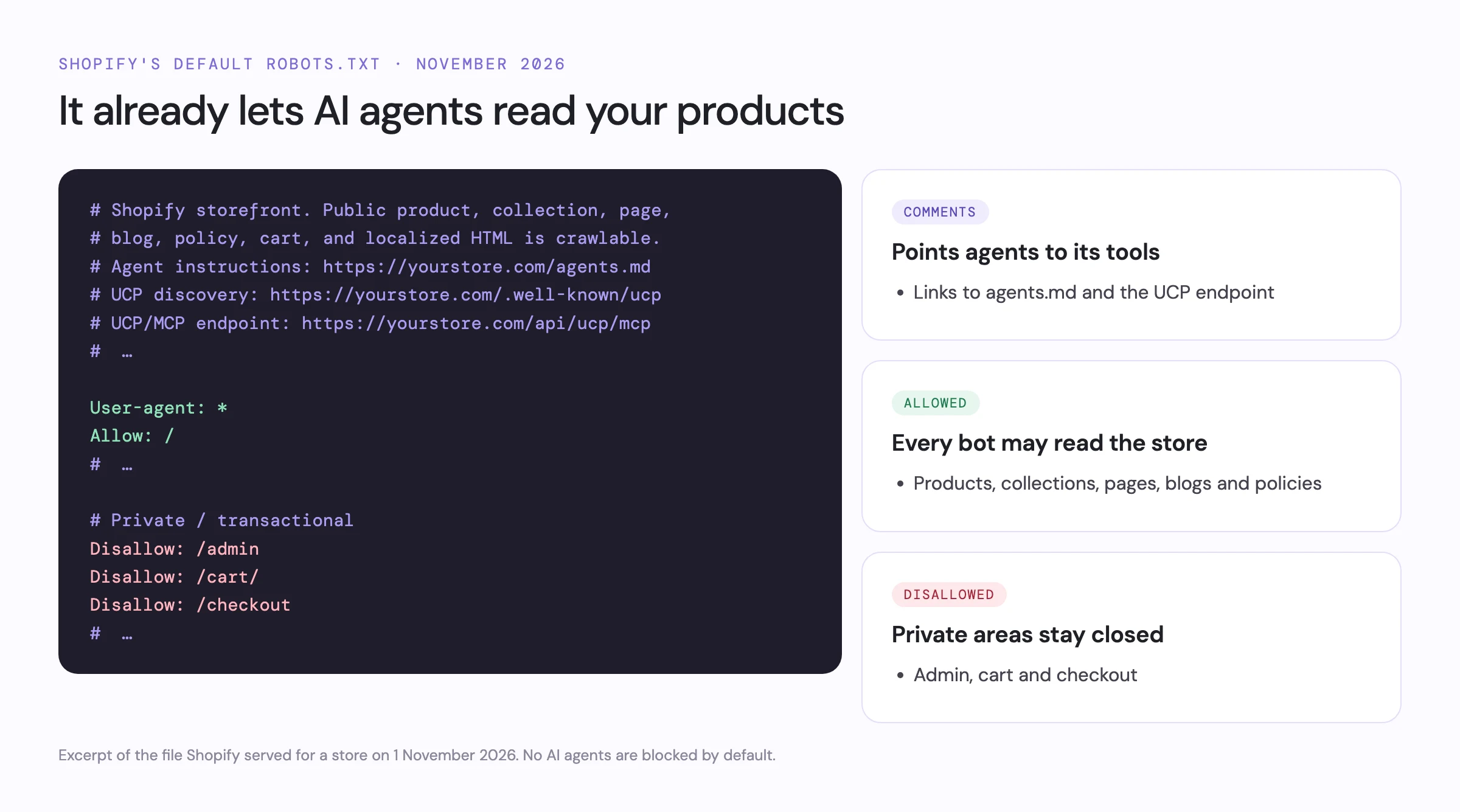
As of November 2026, the file Shopify serves for every online store:
- allows every bot (
User-agent: *) to read products, collections, pages, blogs and policies; - keeps bots out of private and transactional paths such as
/admin,/cartand/checkout; - starts with comments that point agents to the store's
/agents.mdand its Universal Commerce Protocol (UCP) endpoint.
It blocks no AI agents. If your store's file does, a theme customisation, an app or an older edit added the rule.
Three kinds of AI crawler
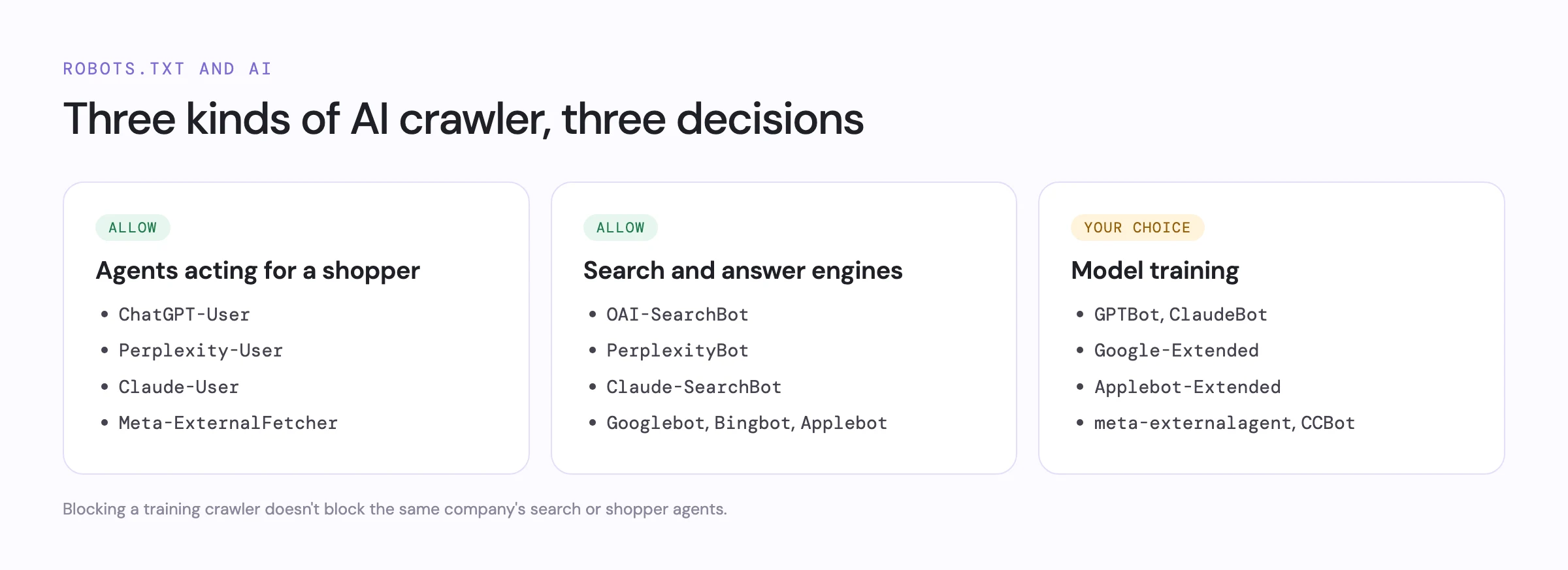
AI companies use different user agents for different jobs, and each one reads its own rules in robots.txt.
Agents acting for a shopper: allow
ChatGPT-User | ChatGPT, when a shopper asks it to look at a page |
|---|---|
Perplexity-User | Perplexity, when a shopper asks |
Claude-User | Claude, when a shopper asks |
Meta-ExternalFetcher | Meta AI, when a shopper asks |
Search and answer engines: allow
OAI-SearchBot | ChatGPT search |
|---|---|
PerplexityBot | Perplexity search |
Claude-SearchBot | Claude search |
Googlebot | Google Search and AI Mode |
Bingbot | Bing and Copilot |
Applebot | Apple (Siri, Spotlight) |
Model training: your choice
GPTBot | OpenAI model training |
|---|---|
ClaudeBot | Anthropic model training |
Google-Extended | Gemini model training (not Google Search) |
Applebot-Extended | Apple model training |
meta-externalagent | Meta model training |
CCBot | Common Crawl, used by many models |
Blocking a training crawler keeps your content out of future model training. It doesn't block the search and shopper agents from the same company, which use the user agents above.
How to change robots.txt on Shopify
- In Shopify, go to Online Store › Themes › … › Edit code.
- Under Templates, choose Add a new template and pick
robots.txt. Shopify createsrobots.txt.liquidwith the default rules. - Add your rules to the defaults rather than replacing them. For example, to block only OpenAI's training crawler:
User-agent: GPTBot Disallow: / - Save, then open yourstore.com/robots.txt to check the result.
Mistakes here can take your store out of search, so change only what you need.
Common mistakes
- Blocking every bot.
User-agent: *withDisallow: /keeps all agents and search engines out. - Blocking a shopper agent by name to stop training. ChatGPT-User and OAI-SearchBot aren't training crawlers; GPTBot is.
- Forgetting bot protection. robots.txt allows a bot, but a firewall or bot-protection service can still answer it with a challenge. Agents then see an error instead of your store.
Check your store
The free agent check reads your robots.txt and lists which shopping, search and training agents it lets in, along with the rest of the AI agent readiness checklist. It works on any store platform.
Questions
Does Shopify's default robots.txt block AI agents?
No. As of November 2026 the default file allows every bot to read products, collections, pages and policies, keeps them out of private areas such as the cart, checkout and admin, and links to the store's agents.md and UCP endpoint.
Should I block GPTBot?
That's a business choice. GPTBot collects content for training OpenAI's models; blocking it doesn't stop ChatGPT search (OAI-SearchBot) or ChatGPT acting for a shopper (ChatGPT-User) from reading your store.
How do I edit robots.txt on Shopify?
Add a robots.txt.liquid template to your theme (Online Store › Themes › Edit code › Add a new template › robots.txt) and change the rules there. Keep Shopify's default rules and add yours to them.